
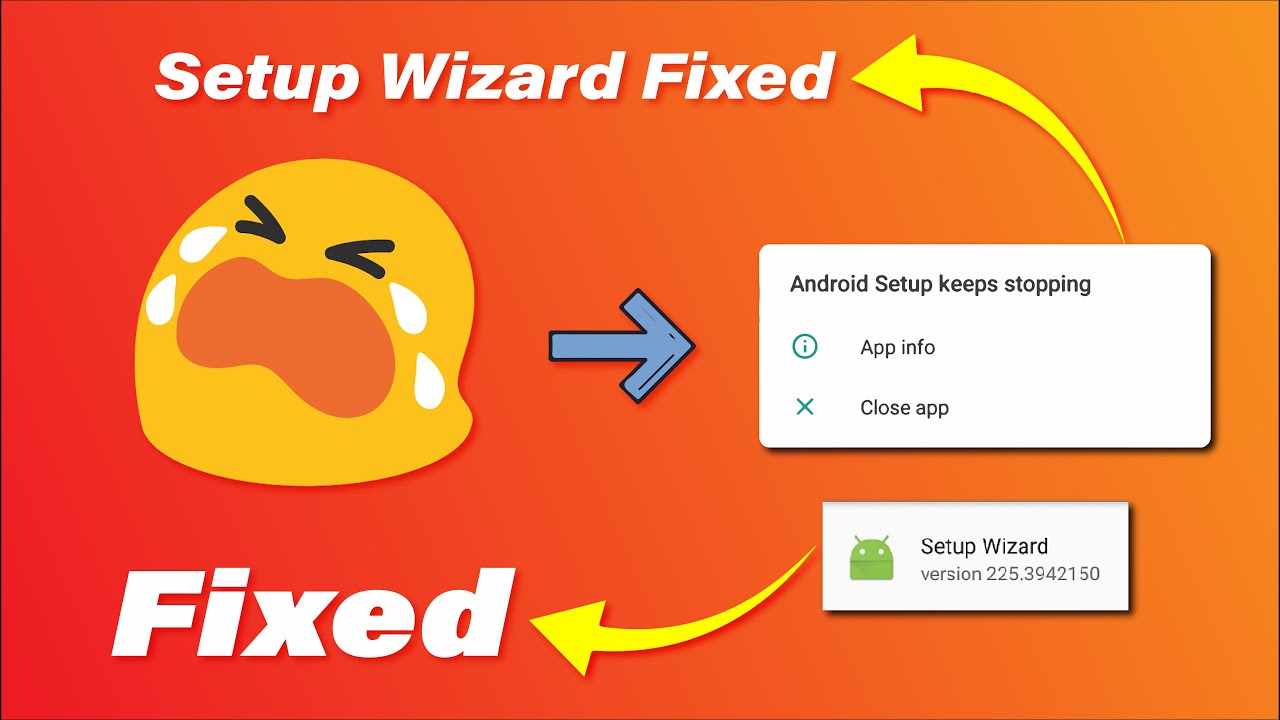

Android Setup Wizard Keeps Stopping or Setup Wizard not working or Setup Wizard Keeps Crashing
Android setup wizard keeps stopping in your phone that's why you are here right? Maybe you are getting this error because you have successfully installed custom ROM and GAPPS and even after booting and successfully making it to the home screen or you are stuck with Android setup wizard keeps stopping and you are not able to to move forward and you are stuck in here. The cause happens due to Google Security features embedded into Google Apps.
So this issue can be solved easily and is quite simple to do. But I will not be responsible if anything happens to your phone or your phone goes into bootloop or gets bricked. So do at your own risk. But I am positive that this thing won't happen. So let's start with what is Android setup wizard?
What is the Android Setup Wizard or What is the Setup Wizard on Android phone?
Android setup wizard or setup wizard is a system tool that is used to set up the phone for the first time. When you first buy your phone and boot it for the first time then the setup wizard occurs.
The setup wizard includes language, country, default mobile data connection, default message, Wi-Fi settings, wallpaper settings, screen lock settings, backup settings, etc.
Android setup wizard is not necessary on the first boot and it can be set up later on. But people forget to set up the phone so that's why it appears on the first boot. But it can be irritating and problematic if the Android setup wizard itself gets unresponsive and the setup wizard keeps crashing.
The Android setup wizard won't let you move further ahead until the Android setup wizard activation is complete. If the Android setup wizard activation is incomplete then you will have to bypass the Android setup wizard. Now let's look at how to fix the setup wizard.
How to Skip Android Setup Wizard: Fix Android Setup Wizard keeps stopping or Android Setup Wizard keeps crashing.
Setup wizard keeps stopping Android can be fixed by clearing the Setup Wizard's data or factory resetting. This method will work if you have a working Android operating system but the setup wizard is unresponsive or the setup wizard is crashing. To fix this issue follow the steps below.
Method one to fix Android setup wizard keeps stopping by clearing app's data.
Step 1: Go to system settings

Step 2: Then go to Apps and Notification or Apps and Features or All Apps.

Step 3: Choose " See all apps " or if you have 3 dots on the right or left corner, click on it and choose all apps.

Step 4: Check for three dots on the left or right corner and select " Show system apps "


Step 5: Search for " Android Setup " and click on it.

Step 6: Now select and click " Force Stop " and then click on " Storage option " or " Storage and Cache "
-

-

-

Step 7: click on " Clear Cache " and " Clear Data " and click on ok whenever it asks to confirm the action.
-

-

The second method to fix the Android setup wizard not working is a little complex. You have to Factory reset your device but it's not guaranteed that it will fix the problem.
Step 1: Backup everything from your device. ( Internal, Messages, Calls, Contacts, Photos, Videos, etc. )
Step 2: Go to system settings
Step 3: Then go to " System and Language " or " System "

Step 4: Choose " Reset options " or " Factory and reset "

Step 5: Click on " Erase all data " or " Factory Reset Device " and it will start factory resetting and it will automatically boot the device. ( Do at your own risk )
-

-

Custom ROM setup wizard keeps stopping or setup wizard keeps stopping in custom ROM after first boot in Android 11 or Android 10 ( can't install GAPPS )
With the Android 11 release, users are unable to flash Vanilla custom ROM variant with GAPPS because the setup wizard keeps stopping in custom ROM after the first boot. That is why they can't move forward because Android setup wizard activation is incomplete. The Vanilla variant of custom ROM is great for extra customizability but because of this problem users are unable to install GAPPS.
Here is a video guide in case you don't understand the process.
So here is the fix to custom ROM setup wizard keeps stopping. Follow the steps below to successfully fix this problem.
Step 1: Boot into custom recovery

Step 2: Go to wipe section and clean Dalvik, Cache, Data, and System
Step 3: Now go to Zip Flash or Files and choose a ROM to install
Step 4: After choosing ROM File, add another Zip and choose GAPPS file
Step 5: Swipe to confirm flash
Step 6: After flashing ROM and the GAPPS file, go to the wipe section and Format data.
Step 7: To format data, choose format section and type yes, and then hit enter, after this, the format data process will start
Step 8: Reboot your smartphone
Step 9: After rebooting the smartphone, you should see the Android setup wizard keep stopping or the Android setup wizard keeps crashing.
Step 10: Now, press and hold your power button and reboot into recovery.
Step 11: Now go to the Mount section in TWRP or go to the menu in Orange Fox and then go to Mount and Mount System partition.
-

-

-

-

Step 12: After Mounting System go to Files or File manager then go to this location. (root)/System_root/system/priv-app/(AndroidSetupWizard)
< Here... root is just / and you may understand it very well >
-

-

-

-

-

-

Step 13: Now after going to this location, delete the Android setup wizard folder by pressing and holding on to the folder then choose " delete " and then " swipe to confirm " to successfully delete the folder.
-

-

-

-

Step 14: Now go back and Reboot your smartphone and you should directly land on the home screen.

This is the method to successfully Boot Vanilla Custom ROM with GAPPS. This method was tested on Redmi Note 9 Pro or Redmi Note 9S (globally), but this method should work on all phones with Android 11 ROMs. I hope you also get the same result as me.


Comments (0)
Syncing authorization...