

Hide Magisk Manager App Problem & Reasons
Magisk Manager is one the best thing for Rooted users, Right? But some Apps like Banking Apps, Gaming Apps, and Apps that involves Money Transaction don’t work when Magisk Manager is installed.
You might want to hide Magisk Manager because Banking Apps are not working. So there is a fix to this problem. Follow along to know how to Hide Magisk Manager App from Android.
After you hide Magisk Manager App, root detection by Apps will no longer give you the warning.
I have also made an article on how to hide Root from Banking Apps.
If your Banking Apps not working Rooted Device or if you want to hide root in android then you can bypass root detection in Android with the help of that article. You can find that article as related.
Hide Magisk Manager App: Hide Magisk Root in Android – Magisk Hide Detected.

To Hide Magisk Manager App in Android, Follow the steps below carefully.
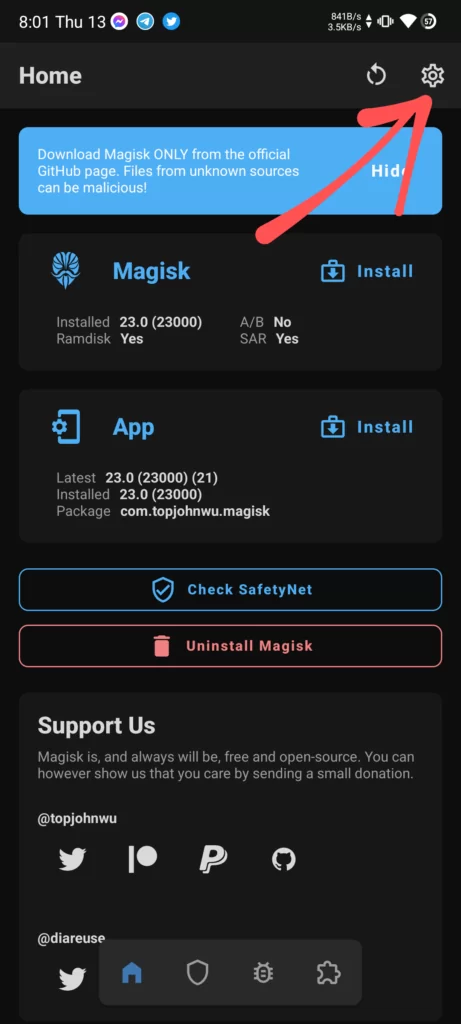
Step 1: Open Magisk Manager App.
Step 2: Inside Magisk Manager App, Tap the Settings icon on the top right corner.
Step 3: Inside Settings of Magisk Manager, Scroll down a little until you see ‘Hide the Magisk App’ in the Apps section.
Step 4: Tap on ‘Hide the Magisk App’.
Step 5: After that, it will ask you to enter a desired name for the Magisk Manager App, and it will show you the Magisk App with the name that you input.
By default, it takes the name ‘Settings’. You can also give it another name as you desire. But if you don’t want to change then you can go with the default name.
Step 6: After inputting the name for Magisk Manager App, Tap on ‘OK’.
Step 7: As soon as you tap on ‘OK’, it will change the name, and Magisk Manager App will ask you to add a Shortcut to Homescreen for the new name. Tap on ‘OK’ to add Magisk App to Homescreen.
-

-

-

-

-

-

-

Now you have finally Hide Magisk Manager App in Android. But in case you want to restore to previous settings of the Magisk Manager App, follow the steps below.
How to Restore Magisk Manager App and unhide it.
Step 1: Open Magisk Manager App.
Step 2: Open Settings on the top right corner inside Magisk Manager App.
Step 3: Inside Settings of Magisk Manager, Scroll down a little and Tap on ‘Restore Magisk Manager App’ to restore its name to default.
That’s it. You have successfully Restored Magisk Manager App to its default name and unhide the Magisk Manager App.

Comments (0)
Syncing authorization...